In the interview · Step 8
The live copilot
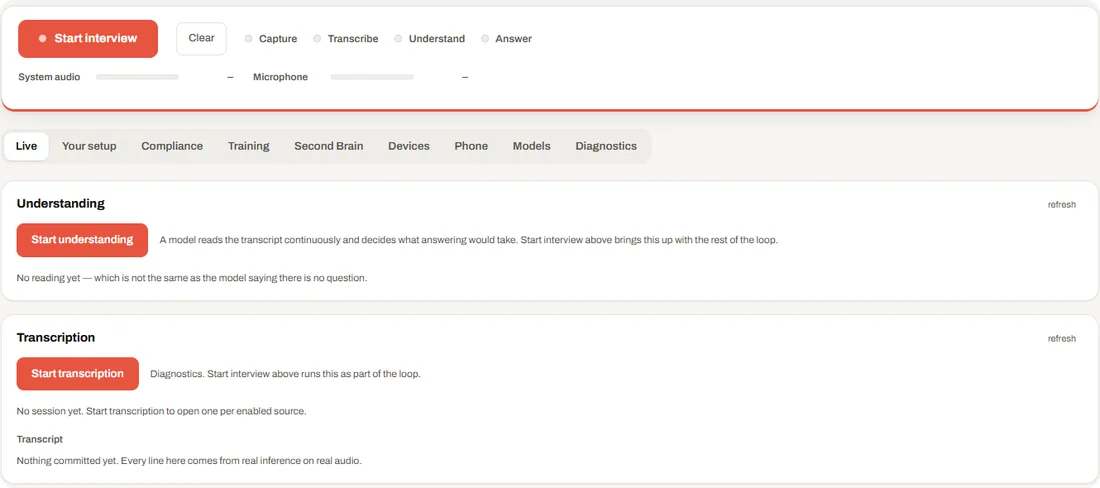
In a practice session, or an interview where you have confirmed AI assistance is permitted, JBWhisper runs the whole loop — capture, transcribe, understand, answer — and shows the answer in a window that stays on top of your call.
Start a session
- Press Start interviewChoose the session type and what the session may do (see Session types and Compliance Mode).
- Watch the stagesCapture, Transcribe, Understand and Answer light up as each part starts; the meters show that audio arrives.
- Read the Transcript windowOne line of what is being said right now.
- Read the Answer windowThe answer appears as it is written, with the question it answers, a grounded badge and how long it took. You can switch between the original and the grounded version.
Hotkeys
They work while the call has focus, which is the point. If another app already owns a shortcut, JBWhisper tells you and the buttons on the Transcript window do the same jobs.
| Keys | Does |
|---|---|
| Ctrl+Alt+C | Start or stop listening |
| Ctrl+Alt+U | Start or stop reading the conversation |
| Ctrl+Alt+S | Look at the screen now (Ctrl+Alt+Shift+S when another app owns Ctrl+Alt+S) |
Looking at the screen
When the session allows it, JBWhisper can take a screenshot of the selected display and include it with the question, so “why is this code unsafe?” works on what is actually on screen. Looking at the screen and keeping a copy of it are separate permissions.
After the session
- The Answer window keeps the last answers until you press Clear
- JBWhisper can offer to keep the interview in your Second Brain
- A recording, if you allowed one, is kept on your computer; an interrupted recording can be recovered